Slide Layouts
Turn your ideas into a consistent set of slide layouts.
Input
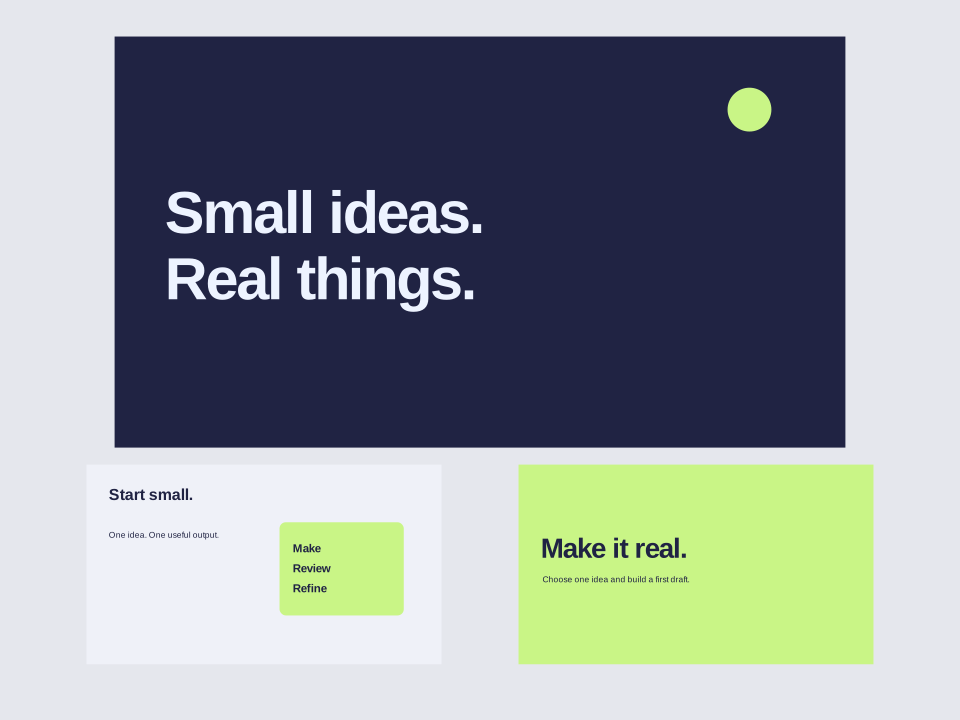
Three 16:9 slides: Small ideas. Real things.; Start small. One idea. One useful output. Make, Review, Refine.; Make it real. Choose one idea and build a first draft. Use navy, pale gray, and lime.
Instructions
Manual download
Download .mdView instructions
---
name: slide-layouts
description: Turn supplied presentation content into a consistent set of editable SVG slide layouts with clear visual hierarchy.
---
# Slide Layouts
Create a small set of static presentation layouts from the user's actual content.

## Plan and build
- Preserve supplied facts, names, and numbers. Use placeholders only when clearly requested, and identify them as placeholders rather than real results.
- Assign one takeaway to each slide. Choose a title, comparison, process, or closing layout according to the content instead of repeating one template everywhere.
- Use the requested canvas. Default to 1600 by 900, a 16:9 aspect ratio, with a shared 80-pixel safe margin and spacing scale.
- Keep one type family, two weights, and a consistent hierarchy across the set. On the default canvas, aim for headings around 64 pixels and body text of at least 32 pixels. Split excess content rather than reducing it to footnotes.
- Align related elements to shared columns. Use charts only when the user provides data; never draw decorative charts that imply invented measurements.
- Export separate self-contained SVG files with explicit dimensions and viewBox. Keep text editable, escape XML strings, and exclude scripts or remote assets. Use installed fonts with recorded fallbacks.

## Verify
Render each slide and a contact sheet when a renderer is available. Check order, typography, clipping, contrast, and consistent margins. Compare every number and label with the source. Disclose any missing visual verification.

## Deliver
Save slide-01.svg, slide-02.svg, and subsequent slides in a new output folder. Include a contact sheet and a brief font note. These are editable vector layouts, not a native PowerPoint deck; do not promise editable PowerPoint text when merely importing SVGs. Only create a native deck when explicitly requested and supported by available tools.
Output
How to use
Choose Install, run the command in your project folder, and select your AI tool. Alternatively, copy the instructions into your coding assistant, then describe what you want to make. Open the resulting SVG in a browser or vector editor. Your AI assistant may have its own usage costs.
Remove private information and check the result before using it.
Tips & limitations
Supply the actual slide copy, aspect ratio, and desired palette.
Check typography, spacing, and consistency across every slide.
Creates SVG layouts rather than a native PowerPoint file. The sample uses illustrative presentation copy.
More examples
Input
Three 16:9 slides: Small ideas. Real things.; Start small. One idea. One useful output. Make, Review, Refine.; Make it real. Choose one idea and build a first draft. Use navy, pale gray, and lime.
Output
Three editable SVG slide layouts with matching typography and colors.
When information is missing
Input
Make a slide showing growth, but no numbers are available.
Output
Use a qualitative statement or request verified data instead of inventing a chart.